🎨 ColorPickerView implements getting HSV colors, ARGB values, Hex color codes from
any image drawables or your gallery pictures by tapping on the desired color.
Supports alpha & brightness slider bar, dialog, and saving & restoring selected data.









Add below codes to your rootbuild.gradle file (not your module build.gradle file).
allprojects{repositories{jcenter() } }And add below dependency code to your module's build.gradle file.
dependencies{implementation "com.github.skydoves:colorpickerview:2.2.2" }
- ColorPickerView in layout
- ColorListener
- Palette
- ActionMode
- Debounce
- Create using builder
- Restore and save state
- Palette from Gallery
2. AlphaSlideBar
3. BrightnessSlideBar
4. ColorPickerDialog
5. FlagView
6. AlphaTileView
7. ColorPickerView Methods
8. Other Libraries
Add following XML namespace inside your XML layout file.
xmlns:app="http://schemas.android.com/apk/res-auto"We can use ColorPickerView without any customized attributes.
This ColorPickerView will be initialized with the default HSV color palette and default selector.
<com.skydoves.colorpickerview.ColorPickerViewandroid:id="@+id/colorPickerView"android:layout_width="300dp"android:layout_height="300dp"/>We can customize the palette image and selector or various options using the below attributes.
app:palette="@drawable/palette"// sets a custom palette image.app:selector="@drawable/wheel"// sets a custom selector image.app:selector_size="32dp"// sets a width & height size of the selector.app:alpha_selector="0.8"// sets an alpha of thr selector.app:alpha_flag="0.8"// sets an alpha of the flag.app:actionMode="last"// sets action mode 'always' or 'last'.// set an initial position of the selector using a specific color. This attribute will work with only a default HSV palette.app:initialColor="@color/colorPrimary"app:preferenceName="MyColorPicker"// sets a preference name.app:debounceDuration="200"// sets a debounce duration of the invoking color listener.ColorListener is invoked when tapped by a user or selected a position by a function.
colorPickerView.setColorListener(newColorListener(){@OverridepublicvoidonColorSelected(intcolor, booleanfromUser){LinearLayoutlinearLayout = findViewById(R.id.linearLayout); linearLayout.setBackgroundColor(color)} });ColorEnvelope is a wrapper class of color models for providing more variety of color models.
We can get HSV color value, Hex string code, ARGB value from the ColorEnvelope.
colorEnvelope.getColor() // returns a integer color.colorEnvelope.getHexCode() // returns a hex code string.colorEnvelope.getArgb() // returns a argb integer array.ColorEnvelopeListener extends ColorListener and it provides ColorEnvelope as a parameter.
colorPickerView.setColorListener(newColorEnvelopeListener(){@OverridepublicvoidonColorSelected(ColorEnvelopeenvelope, booleanfromUser){linearLayout.setBackgroundColor(envelope.getColor()); textView.setText("#" + envelope.getHexCode())} });If we do not set any customized palette, the default palette drawable is the ColorHsvPalette.
We can move and select a point on the palette using a specific color using the below methods.
colorPickerView.selectByHsvColor(color); colorPickerView.selectByHsvColorRes(R.color.colorPrimary);We can change the default palette as a desired image drawable using the below method.
But if we change the palette using another drawable, we can not use the selectByHsvColor method.
colorPickerView.setPaletteDrawable(drawable);If we want to change back to the default palette, we can change it using the below method.
colorPickerView.setHsvPaletteDrawable();ActionMode is an option restrict to invoke the ColorListener by user actions.
colorPickerView.setActionMode(ActionMode.LAST); // ColorListener will be invoked when the finger is released.Only emits color values to the listener if a particular timespan has passed without it emitting using debounceDuration attribute. We can set the debounceDuration on our xml layout file.
app:debounceDuration="150" Or we can set it programmatically.
colorPickerView.setDebounceDuration(150);This is how to create ColorPickerView's instance using ColorPickerView.Builder class.
ColorPickerViewcolorPickerView = newColorPickerView.Builder(context) .setColorListener(colorListener) .setPreferenceName("MyColorPicker"); .setActionMode(ActionMode.LAST) .setAlphaSlideBar(alphaSlideBar) .setBrightnessSlideBar(brightnessSlideBar) .setFlagView(newCustomFlag(context, R.layout.layout_flag)) .setPaletteDrawable(ContextCompat.getDrawable(context, R.drawable.palette)) .setSelectorDrawable(ContextCompat.getDrawable(context, R.drawable.selector)) .build();We can set an initial color and set positions of selector and slideBars based on the initial color.
This function will work only with a default HSV palette.
If we set preference name using the setPreferenceName method, this function will work only once.
app:initialColor="@color/colorPrimary"Or we can use this method programmatically.
.setInitialColor(color); .setInitialColorRes(R.color.colorPrimary);This is how to restore the state of ColorPickerView.setPreferenceName() method restores all of the saved states (selector, color) automatically.
colorPickerView.setPreferenceName("MyColorPicker");This is how to save the states of ColorPickerView.setLifecycleOwner() method saves all of the states automatically when the lifecycleOwner is destroy.
colorPickerView.setLifecycleOwner(this);Or we can save the states manually using the below method.
ColorPickerPreferenceManager.getInstance(this).saveColorPickerData(colorPickerView);We can manipulate and clear the saved states using ColorPickerPreferenceManager.
ColorPickerPreferenceManagermanager = ColorPickerPreferenceManager.getInstance(this); manager.setColor("MyColorPicker", Color.RED); // manipulates the saved color data.manager.setSelectorPosition("MyColorPicker", newPoint(120, 120)); // manipulates the saved selector's position data.manager.clearSavedAllData(); // clears all of the states.manager.clearSavedColor("MyColorPicker"); // clears only saved color data. manager.restoreColorPickerData(colorPickerView); // restores the saved states manually.Here is how to get a bitmap drawable from the gallery image and set it to the palette.
Declare below permission on your AndroidManifest.xml file.
<uses-permission android:name="android.permission.READ_EXTERNAL_STORAGE"/>The below codes will start the Gallery and we can choose the desired image.
IntentphotoPickerIntent = newIntent(Intent.ACTION_PICK); photoPickerIntent.setType("image/*"); startActivityForResult(photoPickerIntent, REQUEST_CODE_GALLERY);In the onActivityResult, we can get a bitmap drawable from the gallery and set it as the palette. And We can change the palette image of the ColorPickerView using the setPaletteDrawable method.
try{finalUriimageUri = data.getData(); finalInputStreamimageStream = getContentResolver().openInputStream(imageUri); finalBitmapselectedImage = BitmapFactory.decodeStream(imageStream); Drawabledrawable = newBitmapDrawable(getResources(), selectedImage); colorPickerView.setPaletteDrawable(drawable)} catch (FileNotFoundExceptione){e.printStackTrace()}AlphaSlideBar changes the transparency of the selected color. 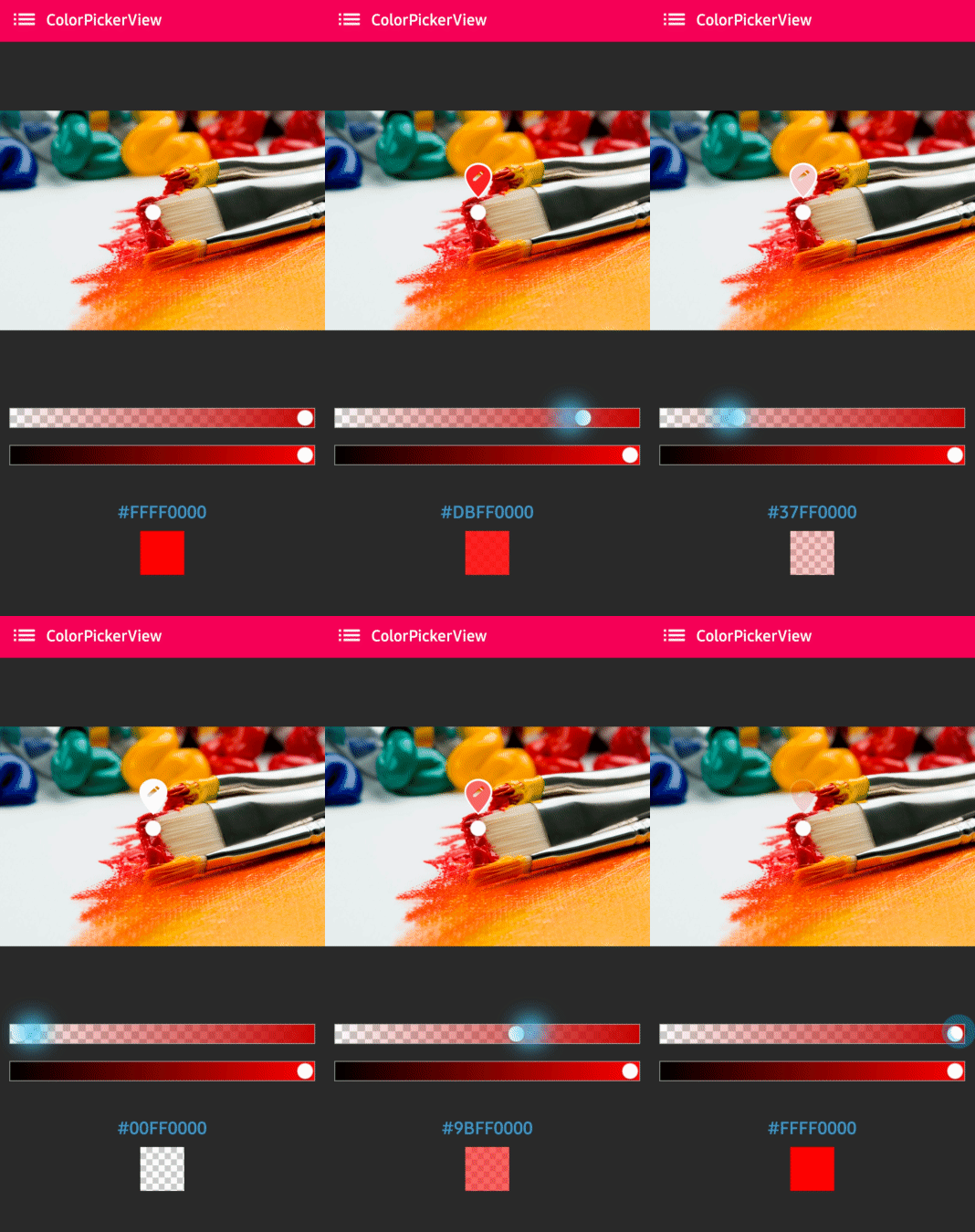
AlphaSlideBar in XML layout
<com.skydoves.colorpickerview.sliders.AlphaSlideBarandroid:id="@+id/alphaSlideBar"android:layout_width="match_parent"android:layout_height="wrap_content"app:selector_AlphaSlideBar="@drawable/wheel"// sets a customized selector drawable.app:borderColor_AlphaSlideBar="@android:color/darker_gray"// sets a color of the border.app:borderSize_AlphaSlideBar="5"/> // sets a size of the border.We can attach and connect the AlphaSlideBar to our ColorPickerView using attachAlphaSlider method.
AlphaSlideBaralphaSlideBar = findViewById(R.id.alphaSlideBar); colorPickerView.attachAlphaSlider(alphaSlideBar);We can make it vertically using the below attributes.
android:layout_width="280dp"// width must set a specific width size.android:layout_height="wrap_content"android:rotation="90"BrightnessSlideBar changes the brightness of the selected color. 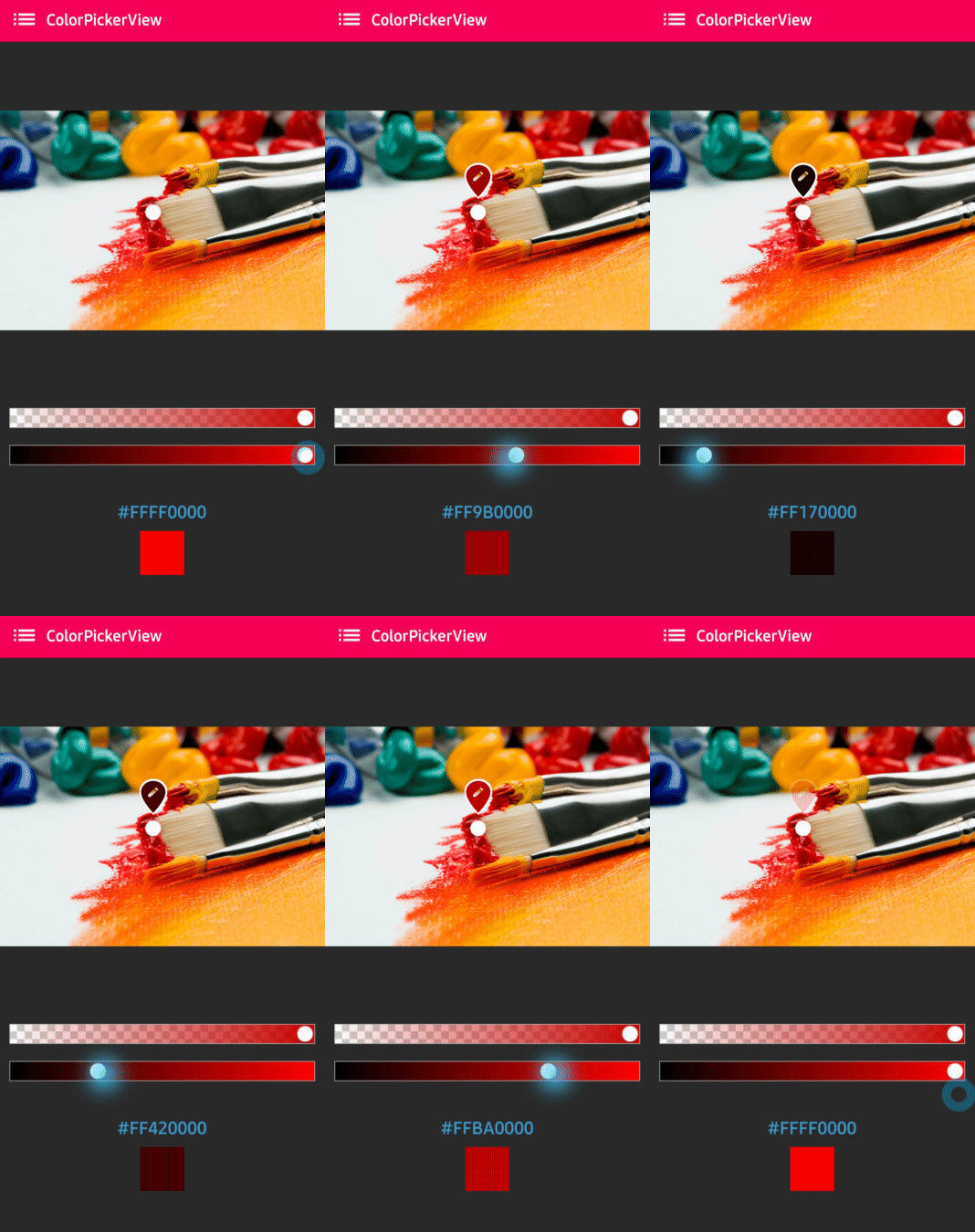
BrightnessSlideBar in XML layout
<com.skydoves.colorpickerview.sliders.BrightnessSlideBarandroid:id="@+id/brightnessSlide"android:layout_width="match_parent"android:layout_height="wrap_content"app:selector_BrightnessSlider="@drawable/wheel"// sets a customized selector drawable.app:borderColor_BrightnessSlider="@android:color/darker_gray"// sets a color of the border.app:borderSize_BrightnessSlider="5"/> // sets a size of the border.We can attach and connect the BrightnessSlideBar to our ColorPickerView using attachBrightnessSlider method.
BrightnessSlideBarbrightnessSlideBar = findViewById(R.id.brightnessSlide); colorPickerView.attachBrightnessSlider(brightnessSlideBar);We can make it vertically using the below attributes.
android:layout_width="280dp"// width must set a specific width size.android:layout_height="wrap_content"android:rotation="90"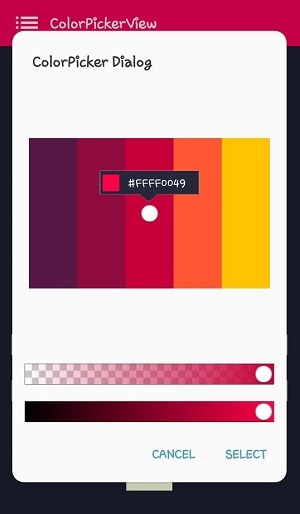
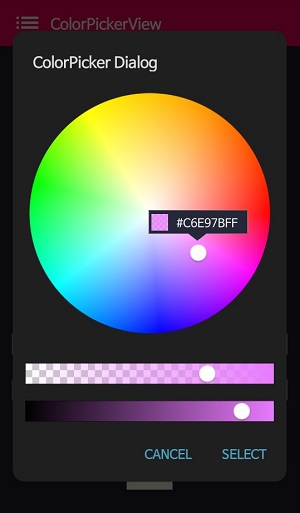
ColorPickerDialog can be used just like an AlertDialog and it provides colors by tapping from any drawable.
newColorPickerDialog.Builder(this) .setTitle("ColorPicker Dialog") .setPreferenceName("MyColorPickerDialog") .setPositiveButton(getString(R.string.confirm), newColorEnvelopeListener(){@OverridepublicvoidonColorSelected(ColorEnvelopeenvelope, booleanfromUser){setLayoutColor(envelope)} }) .setNegativeButton(getString(R.string.cancel), newDialogInterface.OnClickListener(){@OverridepublicvoidonClick(DialogInterfacedialogInterface, inti){dialogInterface.dismiss()} }) .attachAlphaSlideBar(true) // the default value is true. .attachBrightnessSlideBar(true) // the default value is true. .setBottomSpace(12) // set a bottom space between the last slidebar and buttons. .show();we can get an instance of ColorPickerView from the ColorPickerView.Builder and we can customize it.
ColorPickerViewcolorPickerView = builder.getColorPickerView(); colorPickerView.setFlagView(newCustomFlag(this, R.layout.layout_flag)); // sets a custom flagViewbuilder.show(); // shows the dialogWe can implement showing a FlagView above and below on the selector.
This library provides BubbleFlagView by default as we can see the previews.
Here is the example code for implementing it.
BubbleFlagbubbleFlag = newBubbleFlag(this); bubbleFlag.setFlagMode(FlagMode.FADE); colorPickerView.setFlagView(bubbleFlag);We can also fully customize the FlagView like below.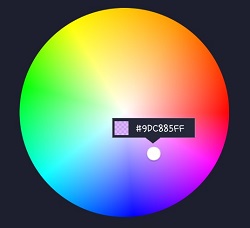
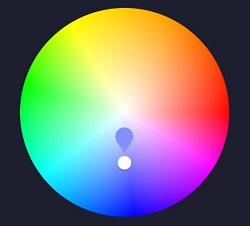
First, We need a customized layout like below.
<?xml version="1.0" encoding="utf-8"?><LinearLayoutxmlns:android="http://schemas.android.com/apk/res/android"xmlns:tools="http://schemas.android.com/tools"android:layout_width="100dp"android:layout_height="40dp"android:background="@drawable/flag"android:orientation="horizontal"><LinearLayoutandroid:id="@+id/flag_color_layout"android:layout_width="20dp"android:layout_height="20dp"android:layout_marginTop="6dp"android:layout_marginLeft="5dp"android:orientation="vertical"/><TextViewandroid:id="@+id/flag_color_code"android:layout_width="wrap_content"android:layout_height="wrap_content"android:layout_marginTop="6dp"android:layout_marginLeft="10dp"android:layout_marginRight="5dp"android:textSize="14dp"android:textColor="@android:color/white"android:maxLines="1"android:ellipsize="end"android:textAppearance="?android:attr/textAppearanceSmall"tools:text="#ffffff"/></LinearLayout>Second, we need to create a class that extends FlagView. Here is an example code.
publicclassCustomFlagextendsFlagView{privateTextViewtextView; privateAlphaTileViewalphaTileView; publicCustomFlag(Contextcontext, intlayout){super(context, layout); textView = findViewById(R.id.flag_color_code); alphaTileView = findViewById(R.id.flag_color_layout)} @OverridepublicvoidonRefresh(ColorEnvelopecolorEnvelope){textView.setText("#" + colorEnvelope.getHexCode()); alphaTileView.setPaintColor(colorEnvelope.getColor())} }And last, set the FlagView to the ColorPickerView using the setFlagView method.
colorPickerView.setFlagView(newCustomFlag(this, R.layout.layout_flag));FlagMode is an option to decides the visibility action of the FlagView.
colorPickerView.setFlagMode(FlagMode.ALWAYS); // showing always by tapping and dragging.colorPickerView.setFlagMode(FlagMode.LAST); // showing only when finger released.
AlphaTileView visualizes ARGB colors over the view.
If we need to represent ARGB colors on the general view, it will not be showing accurately. Because a color will be mixed with the parent view's background color. so if we need to represent ARGB colors accurately, we can use the AlphaTileView.
<com.skydoves.colorpickerview.AlphaTileViewandroid:id="@+id/alphaTileView"android:layout_width="55dp"android:layout_height="55dp"app:tileSize="20"// the size of the repeating tileapp:tileEvenColor="@color/tile_even"// the color of even tilesapp:tileOddColor="@color/tile_odd"/> // the color of odd tiles| Methods | Return | Description |
|---|---|---|
| getColor() | int | gets the last selected color. |
| getColorEnvelope() | ColorEnvelope | gets the ColorEnvelope of the last selected color. |
| setPaletteDrawable(Drawable drawable) | void | changes palette drawable manually. |
| setSelectorDrawable(Drawable drawable) | void | changes selector drawable manually. |
| setSelectorPoint(int x, int y) | void | selects the specific coordinate of the palette manually. |
| selectByHsvColor(@ColorInt int color) | void | changes selector's selected point by a specific color. |
| selectByHsvColorRes(@ColorRes int resource) | void | changes selector's selected point by a specific color using a color resource. |
| setHsvPaletteDrawable() | void | changes the palette drawable as the default drawable (ColorHsvPalette). |
| selectCenter() | void | selects the center of the palette manually. |
| setInitialColor(@ColorInt int color) | void | changes selector's selected point by a specific color initially. |
| setInitialColorRes(@ColorRes int resource) | void | changes selector's selected point by a specific color initially using a color resource. |
| setActionMode(ActionMode) | void | sets the color listener's trigger action mode. |
| setFlagView(FlagView flagView) | void | sets FlagView on ColorPickerView. |
| attachAlphaSlider | void | linking an AlphaSlideBar on the ColorPickerView. |
| attachBrightnessSlider | void | linking an BrightnessSlideBar on the ColorPickerView. |
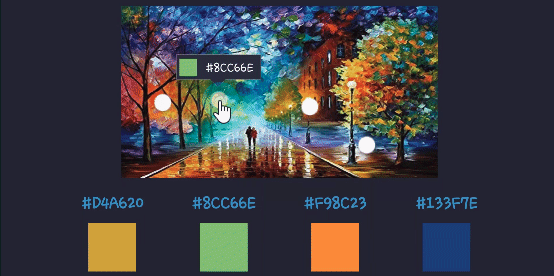
Here are other ColorPicker related libraries!
A library that let you implement ColorPickerView, ColorPickerDialog, ColorPickerPreference.
You can get colors using multi selectors.
At here you can get a more specialized library on multi-coloring.
Support it by joining stargazers for this repository. ⭐
And follow me for my next creations! 🤩
Copyright 2017 skydoves (Jaewoong Eum) Licensed under the Apache License, Version 2.0 (the "License"); you may not use this file except in compliance with the License. You may obtain a copy of the License at http://www.apache.org/licenses/LICENSE-2.0 Unless required by applicable law or agreed to in writing, software distributed under the License is distributed on an "AS IS" BASIS, WITHOUT WARRANTIES OR CONDITIONS OF ANY KIND, either express or implied. See the License for the specific language governing permissions and limitations under the License.