



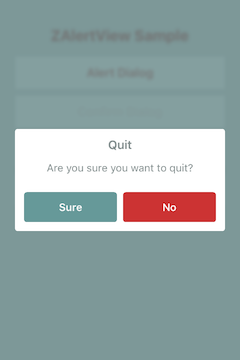
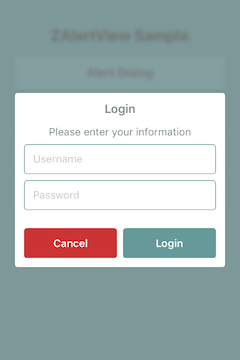

ZAlertView is a highly customizable dialog (exaggerated, right?) view which can be used as a substitution for UIAlertView. It's written in Swift. This is the gift I give to myself on my 26th birthday.
There are 3 types of dialog that ZAlertView currently supports: Alert, Confirmation (Yes/No) and Multiple choice. TextFields can also be added to any of those types.
publicenumAlertType:Int{case Alert case Confirmation case MultipleChoice }To create and show a dialog, first of all, import the module at the beginning of the file:
import ZAlertViewThen show the dialog as below:
letdialog=ZAlertView() dialog.show()There are more convenient constructors for you to use:
ZAlertView(title:"Title", message:"Message", alertType:AlertType.Alert)ZAlertView(title:"Title", message:"Message", closeButtonText:"Close this popup", closeButtonHandler:nil)ZAlertView(title:"Title", message:"Message", okButtonText:"Sure, I do", cancelButtonText:"No way")ZAlertView(title:"Title", message:"Message", isOkButtonLeft:false, okButtonText:"Cool, do it", cancelButtonText:"Stop it", okButtonHandler:nil, cancelButtonHandler:nil)And button handler (TouchHandler) is just a lambda:
(ZAlertView)->()There are plenty of attributes that you can use to make your own style for the whole app:
publicstaticvarpadding:CGFloatpublicstaticvarinnerPadding:CGFloatpublicstaticvarcornerRadius:CGFloatpublicstaticvarbuttonHeight:CGFloatpublicstaticvarbuttonSectionExtraGap:CGFloatpublicstaticvartextFieldHeight:CGFloatpublicstaticvarbackgroundAlpha:CGFloatpublicstaticvarblurredBackground:BoolpublicstaticvarshowAnimation:ShowAnimationpublicstaticvarhideAnimation:HideAnimation // Font publicstaticvaralertTitleFont:UIFont?publicstaticvarmessageFont:UIFont?publicstaticvarbuttonFont:UIFont? // Color publicstaticvarpositiveColor:UIColor?publicstaticvarnegativeColor:UIColor?publicstaticvarneutralColor:UIColor?publicstaticvartitleColor:UIColor?publicstaticvarmessageColor:UIColor?publicstaticvarcancelTextColor:UIColor?publicstaticvarnormalTextColor:UIColor? //Text field style publicstaticvartextFieldTextColor:UIColor?publicstaticvartextFieldBorderColor:UIColor?publicstaticvartextFieldBackgroundColor:UIColor?There are also some basic animations:
publicenumShowAnimation:Int{case FadeIn case FlyLeft case FlyTop case FlyRight case FlyBottom }publicenumHideAnimation:Int{case FadeOut case FlyLeft case FlyTop case FlyRight case FlyBottom }For a specific dialog, there are customizable properties as below:
publicvaralertType:AlertTypepublicvaralertTitle:String?publicvarmessage:String?publicvarokTitle:String?publicvarcancelTitle:String?publicvarcloseTitle:String?publicvarisOkButtonLeft:BoolpublicvarallowTouchOutsideToDismiss:Boolpublicvarwidth:CGFloat=ZAlertView.AlertWidth publicvarheight:CGFloat=ZAlertView.AlertHeight // Master views publicvarbackgroundView:UIView!publicvaralertView:UIView!For dialogs that need multiple buttons, please use AlertType.MultipleChoice. In such case, use the convenient method to add buttons to the dialog. Cool things is that we can use hex color directly here:
publicfunc addButton(title:"Button", touchHandler:TouchHandler) public func addButton(title:"Button", color:UIColor?, titleColor:UIColor?, touchHandler:TouchHandler) public func addButton(title:"Button", hexColor:String, hexTitleColor:String, touchHandler:TouchHandler) public func addButton(title:"Button", font:UIFont, touchHandler:TouchHandler) public func addButton(title:"Button", font:UIFont, color:UIColor?, titleColor:UIColor?, touchHandler:TouchHandler)Similarly, we can also add textfields to the dialog. Each textfield needs an identifier for later manipulation:
publicfunc addTextField(identifier:String, placeHolder:String) public func addTextField(identifier:String, placeHolder:String, isSecured:Bool) public func addTextField(identifier:String, placeHolder:String, keyboardType:UIKeyboardType) public func addTextField(identifier:String, placeHolder:String, keyboardType:UIKeyboardType, font:UIFont, padding:CGFloat, isSecured:Bool)To get a textfield:
publicfunc getTextFieldWithIdentifier(identifier:String)->UITextField?ZAlertView is available through CocoaPods. To install it, simply add the following line to your Podfile:
pod'ZAlertView'Thuong Nguyen, [email protected]
ZAlertView is available under the MIT license. See the LICENSE file for more info.